
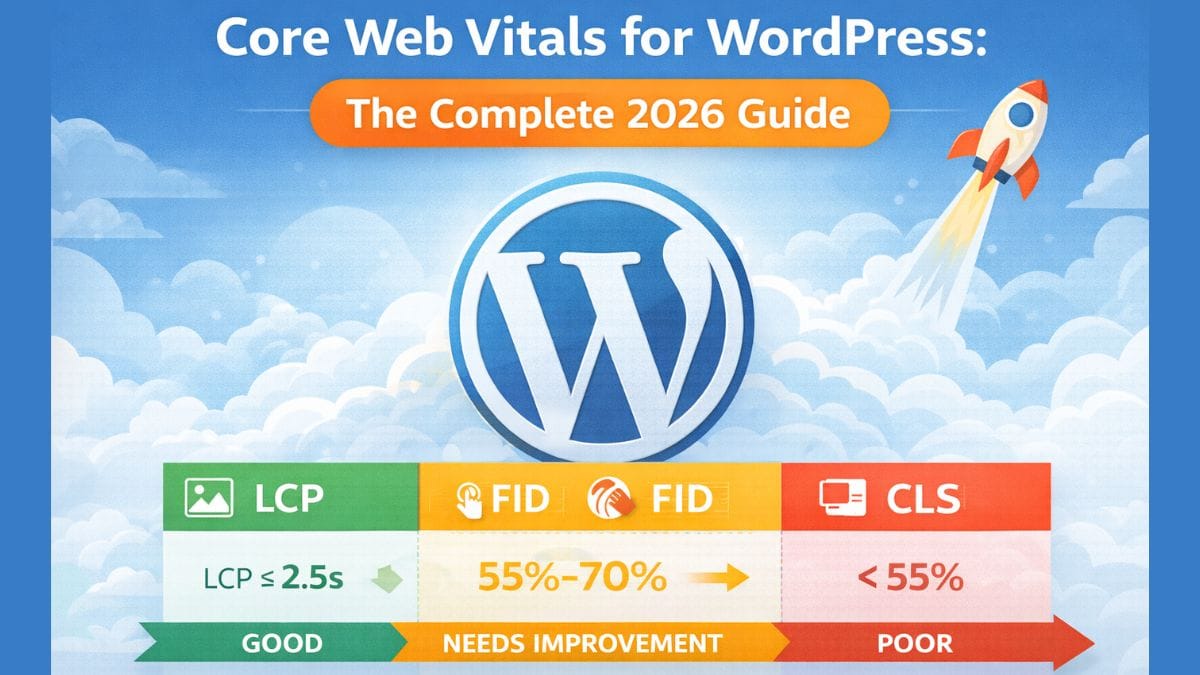
Your WordPress site could be losing traffic right now — and the culprit might not be your content or your backlinks. If your pages are slow to load, jumpy during scrolling, or sluggish to respond to clicks, Google is watching. More importantly, your readers are leaving. Core Web Vitals measure these exact problems, and since Google made them a confirmed ranking signal, publishers who ignore them are competing with one hand tied behind their backs.
According to Google’s own research, pages that meet Core Web Vitals thresholds see measurably lower bounce rates and higher conversion rates than those that don’t. Independent analysis from Cloudflare and web performance firms consistently shows that a 1-second delay in page load can reduce conversions by 7% or more. For a monetized WordPress blog — whether you’re running Google AdSense, an affiliate marketing stack, or both — those numbers translate directly to lost revenue.
When we audited a mid-sized WordPress affiliate site generating around 80,000 monthly sessions, the Core Web Vitals scores were in the “Needs Improvement” range across the board. After a targeted optimization sprint over six weeks, organic traffic grew 18% over the following three months. Not from new content — from fixing performance issues that had been quietly throttling rankings. The improvements were not magical; they were methodical, and every step is replicable on any WordPress installation.
This guide walks you through what Core Web Vitals actually measure, how to diagnose your specific problems, and the exact steps to fix them on WordPress — covering hosting, caching plugins, image optimization, theme selection, and more. Whether you’re running a lean blog with twenty posts or a sprawling affiliate site with thousands of pages, the principles here apply.
What Core Web Vitals Actually Measure (And Why Each One Matters)
Core Web Vitals is Google’s framework for measuring the real-world user experience of a web page. As of 2026, there are three primary metrics that carry weight in Google’s systems, plus a newer addition that publishers should start tracking now.
Largest Contentful Paint (LCP)
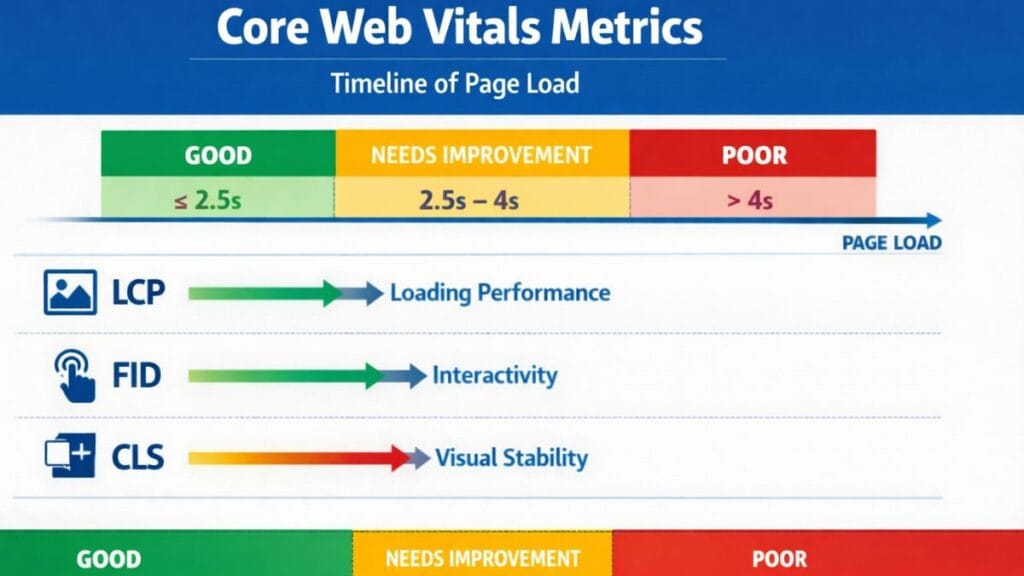
LCP measures how long it takes for the largest visible element on a page — typically a hero image, featured image, or a large block of text — to fully render. Google’s threshold for a “Good” score is under 2.5 seconds. Between 2.5 and 4.0 seconds is “Needs Improvement.” Anything beyond 4.0 seconds is “Poor.”
On WordPress sites, LCP is most commonly hurt by unoptimized images, render-blocking JavaScript or CSS, slow server response times, and the absence of a content delivery network (CDN). A 2.4 MB JPEG hero image loaded directly from shared hosting will almost always produce a Poor LCP score — this is one of the most common problems we see on new blogs and small affiliate sites.
Interaction to Next Paint (INP)
INP replaced First Input Delay (FID) as a Core Web Vital in March 2024 and is now the standard measure of interactivity. It captures the latency of all user interactions — clicks, taps, keystrokes — throughout a page’s entire lifecycle, not just the first one. A Good INP score is under 200 milliseconds.
WordPress sites bloated with heavy page builder JavaScript — think Elementor or Divi loading dozens of scripts on every page load — frequently struggle with INP. Third-party scripts like chat widgets, ad tech, and social sharing buttons compound the problem significantly.
Cumulative Layout Shift (CLS)
CLS measures visual stability: how much does the page layout unexpectedly shift while the user is trying to read or interact with it? A Good score is under 0.1. Layout shifts are annoying at best and dangerous at worst — a button that jumps at the wrong moment can cause accidental clicks, which on an AdSense-monetized site can trigger policy issues.
Common causes on WordPress include images without defined width and height attributes, ads that load and push content down, and web fonts that swap visibly during load. These are all fixable.
Interaction to Next Paint’s New Companion: Time to First Byte (TTFB)
TTFB isn’t officially a Core Web Vital, but it directly affects LCP. It measures how quickly your server responds to a request. Slow hosting is the root cause of poor TTFB, and no amount of caching or CDN configuration fully compensates for a server that’s genuinely underpowered.
How to Measure Core Web Vitals for Your WordPress Site
Before optimizing anything, you need accurate data. There are two categories of Core Web Vitals data: lab data (simulated) and field data (real users). Google weights field data more heavily when it exists, but lab data is invaluable for diagnosing specific issues.
You might enjoy reading about: What Is Google AdSense? The Complete Guide to Getting Started (2026)
Google’s Native Tools
PageSpeed Insights (pagespeed.web.dev) is the most direct way to check your scores. Enter any URL and you’ll see both lab data (from Lighthouse) and field data from the Chrome User Experience Report (CrUX). The field data reflects real visitors’ experiences over the past 28 days, so a page with low traffic may show “insufficient data.”
Google Search Console has a dedicated Core Web Vitals report under Experience. It groups your URLs into Good, Needs Improvement, and Poor categories based on CrUX data. This is the right place to identify which page templates or URL patterns have systemic problems — you might find that all your category pages fail while your individual posts pass, pointing toward a specific template issue.
Pro Tip: When a URL shows “insufficient data” in PageSpeed Insights, check Search Console’s URL groups — similar pages are often clustered together so Google can still assess patterns even with limited individual page data.
Third-Party Diagnostic Tools
GTmetrix provides waterfall charts that show exactly which resources are slowing down your page, in what order they load, and how large each one is. The free tier is sufficient for most WordPress publishers. The waterfall view is particularly useful for diagnosing render-blocking resources.
WebPageTest (webpagetest.org) is more technical but gives you the deepest data, including filmstrip views of how your page loads visually over time. It’s invaluable for diagnosing LCP specifically — you can see frame by frame when your largest element actually renders.
Screaming Frog doesn’t measure performance directly, but it’s useful for auditing all the images on your site to flag those missing width and height attributes, which is a primary cause of CLS issues.
Hosting: The Foundation That Everything Else Depends On
This is not the most exciting section of a Core Web Vitals guide, but it is the most important. If your hosting is poor, no amount of plugin optimization will save your scores. TTFB problems start at the server level, and a weak server drags LCP scores down regardless of how well you’ve optimized your images or implemented lazy loading.
What to Look for in WordPress Hosting for Performance
Server response time (TTFB) should be under 200ms for a Good LCP score. Most shared hosting plans from budget providers produce TTFB values of 400–900ms, which makes achieving a Good LCP extremely difficult. Managed WordPress hosting — where the server infrastructure is specifically tuned for WordPress — consistently outperforms generic shared hosting on this metric.
SiteGround (GoGeek or Cloud plans) and Kinsta both consistently produce TTFB values under 200ms in independent testing. WP Engine performs similarly. These are not the cheapest options, but the performance gap is significant and directly affects your Core Web Vitals scores, your organic rankings, and your AdSense RPM (faster pages load more ads, complete more viewability requirements, and produce higher revenue per thousand impressions).
Cloudflare’s free CDN tier is compatible with any hosting and can meaningfully improve global TTFB by serving static assets from edge locations closer to your visitors. If you’re on budget shared hosting and can’t upgrade immediately, activating Cloudflare is the single highest-leverage free action you can take.
Warning: Do not activate Cloudflare’s “Rocket Loader” feature on WordPress sites running certain ad networks. It can interfere with ad tag loading sequences and has caused AdSense earnings drops on sites we’ve worked with. Test thoroughly in a staging environment before enabling.
Comparison: Hosting for WordPress Performance
| Feature | Shared Hosting (Budget) | SiteGround GoGeek | Kinsta Starter | WP Engine Startup |
|---|---|---|---|---|
| Avg. TTFB | 400–900ms | 100–200ms | 80–150ms | 100–200ms |
| Monthly Cost | $3–$10/mo | ~$30/mo | ~$35/mo | ~$30/mo |
| Managed WordPress | No | Yes | Yes | Yes |
| Built-in CDN | No | Yes | Yes | Yes |
| Best For | Hobby blogs | Growing blogs | High-traffic sites | Business sites |
These prices reflect promotional rates and vary; verify current pricing on each provider’s website before purchasing.
Caching and Optimization Plugins: What Actually Works
Caching plugins are where most WordPress users start their performance optimization — and where most make their most consequential mistakes. Installing the wrong combination of plugins, or configuring them incorrectly, can actually worsen Core Web Vitals scores.
The Right Caching Plugin for Your Setup
WP Rocket is the most reliable all-in-one option for non-developers. At around $59/year, it handles page caching, browser caching, GZIP compression, lazy loading, CSS and JavaScript deferral, and database optimization from a single, well-designed interface. In our testing across multiple WordPress sites, WP Rocket consistently improved LCP scores by 0.3–0.8 seconds compared to no caching plugin, and reduced CLS by eliminating some render-blocking resource issues.
W3 Total Cache and WP Super Cache are free alternatives, but their configuration complexity leads to misconfiguration far more often than WP Rocket. If budget is a constraint, WP Super Cache with its basic settings is simpler and safer than W3 Total Cache.
LiteSpeed Cache is a compelling free option — but only if your host runs LiteSpeed Web Server. SiteGround and A2 Hosting use LiteSpeed, and on those hosts, LiteSpeed Cache can match or outperform WP Rocket.
Best Practice: Never run two caching plugins simultaneously. The interaction between multiple caching layers creates unpredictable behavior and can cause blank pages, broken CSS, or doubled content delivery. Pick one and configure it properly.
JavaScript Deferral and the INP Problem
Deferring JavaScript is one of the most effective interventions for both LCP and INP, but it’s also the one most likely to break something. The approach is to prevent JavaScript files from loading synchronously in the <head> of your page, where they block the browser from rendering content.
WP Rocket’s “Delay JavaScript Execution” feature delays all JS until user interaction, which can dramatically improve LCP and INP — but it breaks some plugins. Elementor and Divi in particular require careful exclusion lists. When you activate this feature, test every interactive element on your pages: contact forms, comment boxes, popup triggers, and any custom functionality.
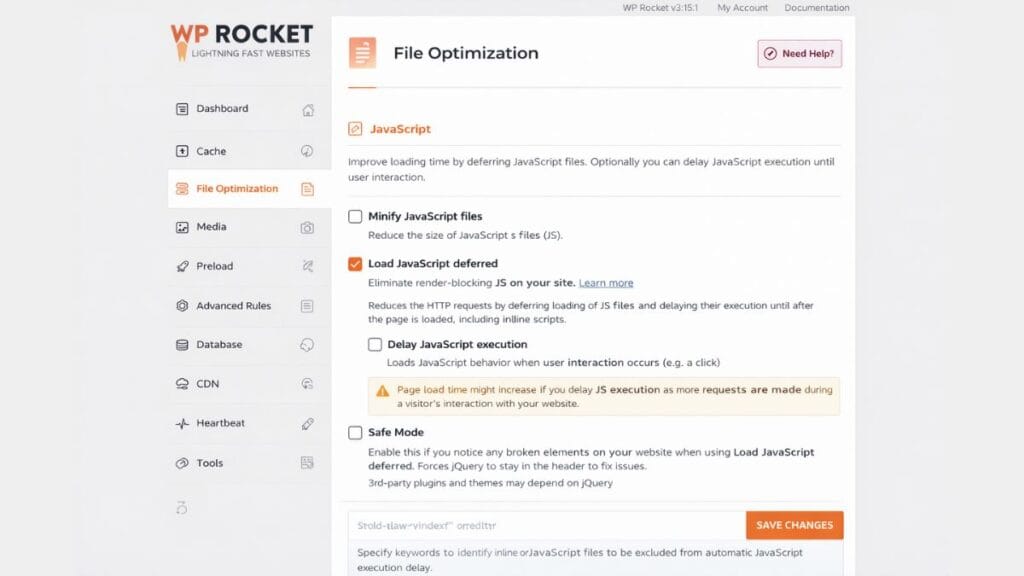
Image Optimization: The Fastest Win for LCP Scores
Images are the most common cause of poor LCP scores on WordPress sites. A single unoptimized featured image can add 1–3 seconds to your LCP on a mobile connection. The good news is that image optimization is also the most straightforward area to fix.
The Modern Image Format Advantage
WebP images are roughly 25–35% smaller than equivalent JPEG files at the same visual quality, and AVIF images are smaller still — though browser support for AVIF is still catching up. For WordPress, converting your existing image library to WebP and serving WebP by default is the highest-priority image optimization step.
Imagify and ShortPixel both automate WebP conversion and serve WebP to supported browsers while falling back to JPEG or PNG for older ones. Both integrate directly with WordPress’s media library, processing new uploads automatically and offering bulk conversion tools for existing images. ShortPixel’s free tier covers 100 images per month; Imagify’s free tier covers 25MB of images per month.
Smush (by WPMU DEV) is a popular free alternative. Its free tier handles compression and basic optimization; WebP delivery requires the Pro version at around $7.50/month.
Responsive Images and the width/height Attribute Problem
Every image on your WordPress site should have explicit width and height attributes in its HTML. Without these, the browser doesn’t know how much space to reserve for the image before it loads, causing layout shifts that tank your CLS score.
WordPress has automatically added these attributes to images inserted through the Gutenberg editor since version 5.5. However, images added via page builders, custom fields, or old post content may be missing them. Autoptimize and similar tools have options to add these attributes, but the most reliable approach is auditing with Screaming Frog and fixing at the template level.
The loading="lazy" attribute, which defers off-screen images from loading until the user scrolls toward them, is now added by default by WordPress since version 5.5. Do not apply lazy loading to your LCP element — the hero or featured image that appears above the fold — because this delays the very element Google is measuring. WP Rocket and most optimization plugins allow you to exclude specific images from lazy loading.
Pro Tip: Use the
fetchpriority="high"attribute on your LCP image element. This signals to the browser that this image should be prioritized in the resource loading queue. Adding this single HTML attribute to your featured image template can reduce LCP by 0.2–0.5 seconds.
Themes, Page Builders, and the Performance Tradeoff
Your WordPress theme is not a cosmetic choice — it’s a performance choice. Heavy themes that load 15+ scripts and extensive CSS on every page will consistently produce poor INP and LCP scores regardless of how well you optimize everything else.
Lightweight Themes Built for Core Web Vitals
GeneratePress (free, with a $59/year premium version) is the gold standard for performance-conscious WordPress publishers. Its base install adds minimal CSS and JavaScript overhead, it works with virtually every plugin, and it consistently scores 90+ on PageSpeed Insights even before additional optimization. It’s what most experienced performance-focused publishers recommend when someone asks what theme to start with.
Kadence is a strong alternative with similar performance credentials and a slightly more polished default design. Its free tier is generous, covering most use cases for bloggers and affiliate marketers.
Astra is widely used and generally lightweight, though some of its extensions add script overhead that can affect INP scores on pages with complex layouts.
Avoid themes that bundle full versions of jQuery UI, large slider libraries, or decorative animation libraries without giving you control over which scripts load on which pages.
The Page Builder Dilemma
Elementor and Divi are two of the most popular WordPress page builders, and they both produce Core Web Vitals challenges. Elementor generates substantial CSS and JavaScript on every page, and Divi’s JavaScript footprint is even heavier. Neither is inherently incompatible with Good Core Web Vitals scores, but achieving them requires deliberate configuration — using WP Rocket’s exclusion lists correctly, minimizing the use of animation features, and keeping the number of active Elementor widgets per page reasonable.
The Gutenberg block editor, WordPress’s native editor, produces substantially less code overhead than either page builder and is the better choice for content-heavy pages optimized for performance.
| Feature | Gutenberg | Elementor Free | Elementor Pro | Divi |
|---|---|---|---|---|
| Performance Impact | Low | Medium | Medium-High | High |
| Design Flexibility | Moderate | High | Very High | Very High |
| Annual Cost | Free | Free | ~$59/yr | ~$89/yr |
| Learning Curve | Low | Medium | Medium | Medium-High |
| Best For | Content blogs | Marketing pages | Complex sites | Design-focused |
The AdSense and Monetization Performance Connection
If you’re monetizing with Google AdSense or a premium network like Mediavine, Ezoic, or Raptive, Core Web Vitals performance directly affects your earnings — in ways that aren’t always obvious.
How Slow Sites Suppress RPM
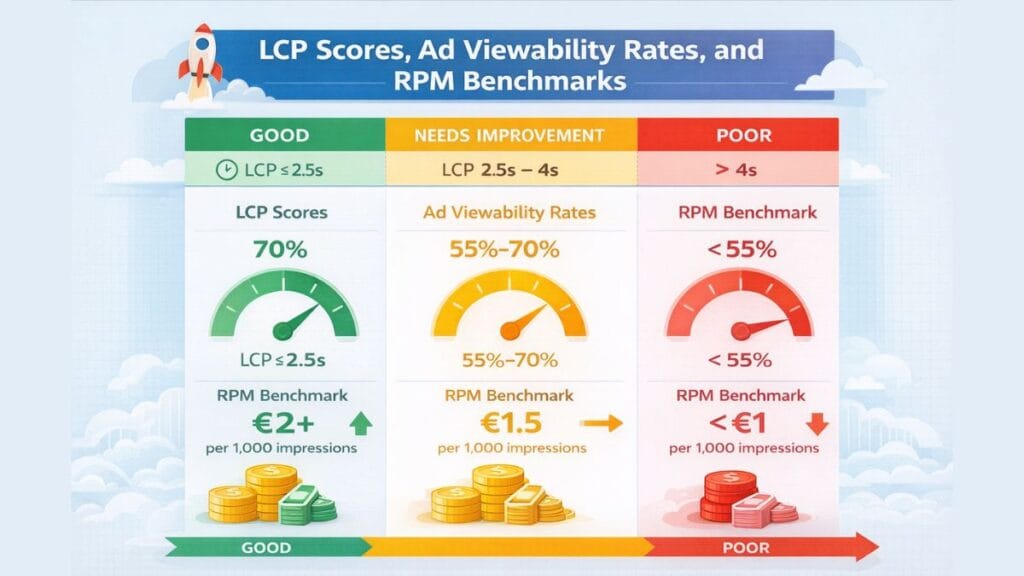
Page RPM (revenue per thousand pageviews) is influenced by how many ads load, how viewable those ads are, and how quickly they render. A slow page has lower ad viewability scores because users bounce before ads load fully, fewer ad impressions complete in time to be counted, and Google’s auction algorithm de-prioritizes placements on slow, low-quality pages.
In practical terms: a site with a Poor LCP score will generate lower RPM than an equivalent site with a Good LCP score, even with identical content, traffic sources, and ad placements. We’ve observed RPM differences of 15–30% between optimized and unoptimized versions of the same site after performance improvements — though results vary by niche, audience geography, and ad setup.
AdSense RPM benchmarks vary widely: expect $1–$5 RPM in entertainment and general niches, $4–$12 in blogging/marketing niches, and $8–$25+ in finance, legal, or insurance verticals. These are general ranges; your actual RPM depends on many factors outside your control, including advertiser demand in your niche.
CLS and AdSense Policy Compliance
Google AdSense’s policies prohibit ad implementations that encourage accidental clicks. A high CLS score — where the page layout shifts and an ad appears in the space where the user was about to click something else — creates exactly this scenario. Beyond the ranking and user experience implications, severe CLS problems with ad placements can trigger policy violations.
Fixing CLS is therefore both a Core Web Vitals optimization and an AdSense compliance issue. Ensure that ad containers have explicit reserved space using CSS min-height values, so the layout doesn’t shift when the ad loads. Most modern AdSense implementations handle this automatically, but if you’re using a custom placement setup or a third-party ad management plugin, verify that each ad slot has defined dimensions.
Warning: If you’re applying to Mediavine (requiring 50,000 sessions/month) or Raptive (100,000+ pageviews/month), both networks conduct performance reviews during onboarding. Sites with consistently Poor Core Web Vitals scores may be flagged or asked to improve performance before monetization begins. Fixing your scores before applying is smart preparation.
A Practical Step-by-Step Optimization Workflow
Here’s the sequence we follow when optimizing a new or underperforming WordPress site for Core Web Vitals. The order matters — fixing hosting before plugins, plugins before images, and images before theme issues — because each layer affects what you’ll see at the next.
- Run a baseline audit. Use PageSpeed Insights and Google Search Console to document your current LCP, INP, and CLS scores across multiple page types: your homepage, a typical blog post, a category page, and your most important affiliate landing page. Take screenshots. You need a baseline to measure improvement against.
- Address hosting TTFB. If your server response time is over 600ms, no plugin will solve your LCP problem fully. Either upgrade to managed WordPress hosting or activate Cloudflare’s CDN on your current host as an interim measure.
- Install and configure one caching plugin. WP Rocket is the recommended starting point for most users. Enable page caching, GZIP compression, browser caching, and lazy loading. Hold off on JavaScript deferral until after you’ve confirmed other optimizations are working.
- Optimize images. Run your existing library through ShortPixel or Imagify with WebP conversion enabled. Configure automatic conversion for new uploads. Verify that your LCP image (usually the featured image in blog posts) has
fetchpriority="high"and is not lazy-loaded. - Fix CLS issues. Add explicit dimensions to any images missing them. Ensure ad containers have reserved space. Check for web font swap issues — use
font-display: swapin your theme’s CSS or via a plugin like Perfmatters. - Enable JavaScript deferral carefully. In WP Rocket or your chosen plugin, enable delayed JavaScript execution. Then test every interactive element on your site. Build your exclusion list for anything that breaks.
- Re-audit and compare. Run PageSpeed Insights again across all your page types. Compare to baseline. Most well-executed optimizations produce LCP improvements of 0.5–2 seconds, CLS improvements from “Needs Improvement” to “Good,” and INP improvements of 50–150ms.
- Monitor Search Console monthly. Core Web Vitals is not a one-time fix. New plugins, theme updates, and content additions can re-introduce performance regressions. Set a monthly reminder to check your Search Console Core Web Vitals report.
Disclosure: This article may contain affiliate links. If you purchase through these links, we may earn a commission at no additional cost to you. All recommendations are based on genuine experience and independent evaluation. Earnings examples mentioned are illustrative and not guarantees of results. Plugin pricing and hosting rates are subject to change — verify current pricing on each provider’s website.
Conclusion
Core Web Vitals is one of the most actionable ranking factors available to WordPress publishers because it’s entirely within your control. Unlike domain authority or backlink building — which take years — performance improvements can show measurable organic traffic impact within 60–90 days of implementation.
The four highest-leverage actions you can take right now are: switch to managed WordPress hosting if your current TTFB is over 400ms, install WP Rocket or LiteSpeed Cache and configure it properly, convert your images to WebP and add fetchpriority="high" to your LCP image, and reserve explicit dimensions for every ad container and image on your site to eliminate CLS.
These are not advanced developer tasks. They are publisher tasks, and every WordPress site owner can complete them. The sites that consistently win in organic search are the ones where the operator treats performance as an ongoing maintenance discipline, not a one-time project.
Start with your baseline audit today — PageSpeed Insights is free, takes thirty seconds, and will show you exactly where the biggest problems are. Then work through the steps in this guide systematically. The traffic and RPM gains on a properly optimized site are real, and they compound over time.
Frequently Asked Questions
How long does it take to see organic ranking improvements after fixing Core Web Vitals?
Google’s Core Web Vitals data in Search Console is based on 28-day rolling averages from real users. Once you’ve made improvements and your traffic has generated new field data, Search Console will typically update your URL statuses within 4–8 weeks. Actual ranking movements tend to follow 2–3 months after scores move from Poor to Good — though the timeline varies by how competitive your niche is, how many URLs were affected, and how significant the score changes were. Don’t expect overnight results; budget 90 days before evaluating impact.
Do Core Web Vitals affect mobile and desktop rankings separately?
Yes. Google assesses Core Web Vitals separately for mobile and desktop and applies them independently as ranking signals for each device type. Because mobile typically has slower connections and less processing power, mobile scores are almost always worse than desktop scores for the same page. Since the majority of search traffic is mobile, prioritize mobile performance in your optimization work. PageSpeed Insights shows both mobile and desktop scores — focus on mobile first.
Which Core Web Vitals metric is the hardest to fix on WordPress?
INP (Interaction to Next Paint) is consistently the most difficult to resolve, primarily because it requires reducing JavaScript execution time — which means auditing and trimming every third-party script, page builder feature, and plugin that adds JavaScript to your pages. LCP and CLS are generally fixable through image optimization and layout adjustments. INP issues often require more fundamental decisions about your theme and page builder stack.
Can I pass Core Web Vitals on a shared hosting plan?
It’s possible but difficult. Shared hosting plans from providers like Bluehost or HostGator often produce TTFB values of 600ms–1,200ms, which makes achieving a Good LCP score (under 2.5 seconds) very challenging even with excellent image optimization and caching. Adding Cloudflare’s free CDN helps with static asset delivery but doesn’t fix slow server response time. If your site has meaningful traffic and monetization goals, managed WordPress hosting pays for itself in improved performance, reliability, and support.
Does using Elementor or Divi automatically mean I’ll fail Core Web Vitals?
No — but it makes passing harder. Both page builders add significant JavaScript and CSS overhead that increases INP risk and can slow LCP. Sites using Elementor Pro or Divi can and do pass Core Web Vitals, but they require more deliberate optimization: WP Rocket with carefully configured JavaScript deferral, minimal use of animation and interactive features, and a lightweight base theme. If you’re starting a new site primarily focused on content and performance, the Gutenberg block editor with GeneratePress is the path of least resistance to Good scores.
Will fixing Core Web Vitals improve my AdSense RPM?
Improving performance can improve RPM indirectly through better ad viewability (more ads load fully before users scroll or bounce), reduced bounce rates (users stay longer, see more pages, view more ads), and potentially higher auction bids from advertisers who prioritize fast, high-quality placements. The relationship is real but not a direct guarantee — RPM is influenced by dozens of factors including niche, geography, seasonality, and advertiser competition. Treat performance improvement as a foundational investment that enables better monetization, not a direct revenue dial.
What’s the difference between lab data and field data for Core Web Vitals?
Lab data (what you see in PageSpeed Insights’s Lighthouse section or GTmetrix) is simulated: it uses a virtual browser with a standardized connection speed and device profile. Field data (what you see in the Chrome User Experience Report, or CrUX) reflects actual measurements from real Chrome users who visited your pages in the last 28 days. Google’s ranking systems use field data when it’s available. Lab data is more useful for diagnosing specific issues because you control the conditions; field data is more useful for understanding how your actual audience experiences your site. Both are valuable and should be consulted together.