
If your WordPress blog is loading slowly, you are losing readers and ad revenue every single day. Google confirmed back in 2021 that Core Web Vitals became an official ranking factor, and by 2026 the bar has only gotten higher. Sites that pass these metrics consistently get rewarded in search results. Sites that don’t? They get buried, no matter how good the content is.
Here is something that might surprise you: most WordPress blogs fail Core Web Vitals not because of bad hosting or bad themes. They fail because of a handful of very fixable problems that most bloggers never even look at. Things like render-blocking scripts, unoptimized images, and plugin conflicts that silently destroy your LCP score while you’re busy writing your next post.
I’ve been running WordPress blogs monetized with Google AdSense for several years now, and I’ve gone through the pain of watching a perfectly good article rank on page two simply because the page experience signals were weak. Once I fixed the Core Web Vitals on my main blog, I saw a measurable improvement in both organic traffic and AdSense RPM within about six weeks. It wasn’t magic. It was just knowing what to fix and in what order.
This guide is going to walk you through exactly what Core Web Vitals are, how they apply specifically to WordPress, and what actions you can take today to start improving your scores.
What Core Web Vitals Actually Measure
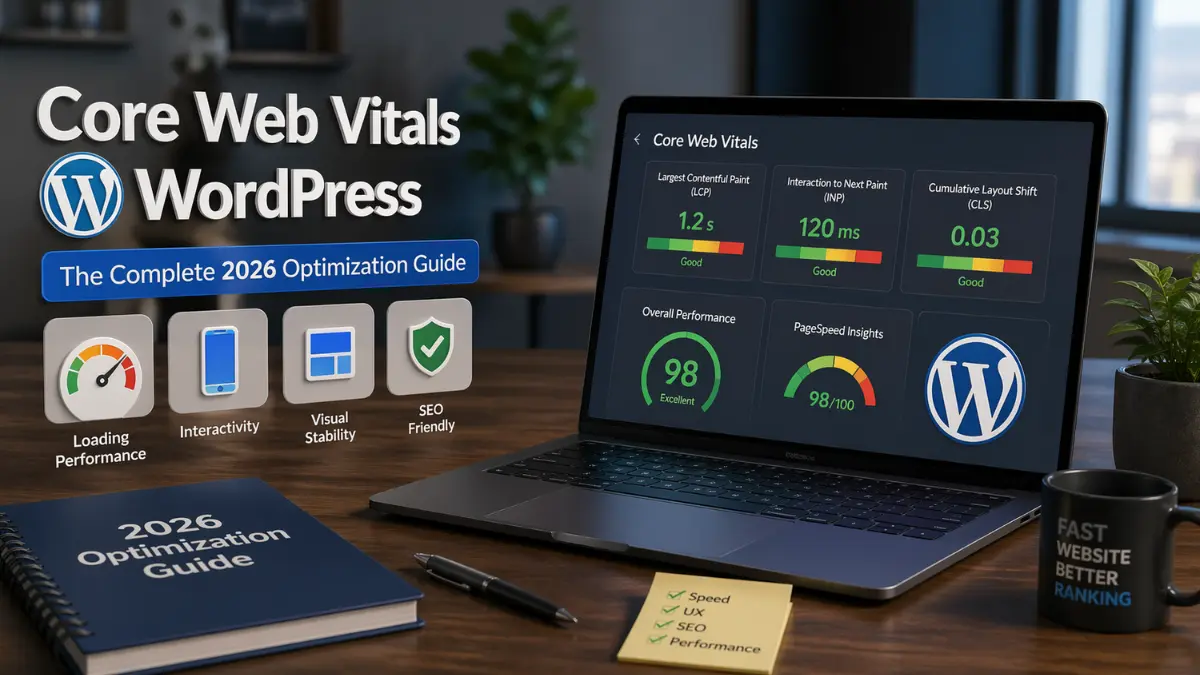
Core Web Vitals are a set of three specific metrics that Google uses to measure the real-world user experience of a page. They focus on loading performance, interactivity, and visual stability.
The three metrics are Largest Contentful Paint (LCP), Interaction to Next Paint (INP), and Cumulative Layout Shift (CLS). LCP measures how long it takes for the largest visible content element on the page to load, which is usually a hero image or a large heading. INP replaced First Input Delay in March 2024 and measures how quickly a page responds to any user interaction, not just the first one. CLS measures how much the page layout shifts around as elements load in.
According to Google’s documentation on Core Web Vitals, the passing thresholds as of 2026 are an LCP of 2.5 seconds or less, an INP of 200 milliseconds or less, and a CLS score of 0.1 or less. Missing any one of these puts your page in the “needs improvement” or “poor” category, which directly affects your ranking potential.
Why These Metrics Matter More for WordPress Blogs
WordPress is a great platform, but out of the box it carries a lot of weight. Plugins, themes, and page builders all contribute to slower load times and layout instability. A default WordPress installation with a popular multipurpose theme and ten or fifteen plugins can easily fail all three Core Web Vitals metrics without any obvious red flags on the surface.
The monetization angle makes this even more important. If you’re running AdSense on your blog, slow pages mean lower viewability scores, which drives down your ad RPM. Google’s algorithms connect page experience to ad quality signals. Faster blogs with stable layouts tend to earn more per thousand impressions, not just rank better.
How to Check Your Core Web Vitals on WordPress
Before you fix anything, you need to know where you actually stand. There are two types of data to look at here: field data and lab data.
Field data comes from real users visiting your site and is collected through the Chrome User Experience Report (CrUX). This is the data Google actually uses for ranking. Lab data comes from tools like PageSpeed Insights or Lighthouse and is simulated. Lab data is useful for diagnosing problems, but field data is what determines your ranking.
Go to PageSpeed Insights and enter your URL. You’ll see both field data (if enough real user data exists for your page) and lab data diagnostics. Run it on your homepage, your most-trafficked post, and ideally your category pages too, since scores can vary significantly across different page types.
You can also check Core Web Vitals data in Google Search Console under the “Experience” section. This gives you a site-wide overview and flags which URLs are in the “good,” “needs improvement,” or “poor” buckets based on actual field data from Chrome users.
The Google Search Console Core Web Vitals Report
In my experience with WordPress blogs, Search Console is the most useful starting point because it shows you at scale where your problems are concentrated. A site might have great LCP on the homepage but terrible CLS on article pages due to ads loading and pushing content around. You would never catch that just by testing one URL in PageSpeed Insights.
Go to Search Console, click “Core Web Vitals” in the left sidebar, and review both the mobile and desktop reports separately. Mobile scores are almost always worse, and since Google uses mobile-first indexing, that is the report you want to prioritize.
Fixing LCP on Your WordPress Site
LCP is usually the biggest problem for WordPress blogs, and it is also the one with the most actionable fixes.
The most common cause of a poor LCP is a large, unoptimized image that loads late because it was not given any priority signals. On a typical blog post, the LCP element is the featured image at the top of the article. If that image is a 2MB PNG with no lazy-load exemption, WordPress is going to load it the same way it loads every other image on the page, which is not fast enough.
Optimize Your Featured Images
The first thing you should do is make sure your featured images are served in a modern format like WebP or AVIF. WordPress has had native WebP support since version 5.8, but converting and serving the right format still requires some attention.
If you are using a caching or performance plugin, check whether it includes image optimization. Plugins like Perfmatters, WP Rocket, or Smush can handle conversion and compression. What I do on my own blog is run all uploaded images through a compression step before they even hit WordPress, using a tool that converts JPEGs and PNGs to WebP on upload automatically. This keeps the media library clean from the start rather than trying to fix it retroactively.
The second fix for LCP is to add a fetchpriority="high" attribute to your LCP image. As of WordPress 6.3, this is applied automatically to the first image in the content area, but depending on your theme structure and how your featured image is coded, it may not be getting applied to the right element. Use your browser’s DevTools to inspect the LCP element that PageSpeed Insights identifies and check whether it has the fetch priority signal. If it doesn’t, you may need to add it manually through your theme’s functions file or ask your theme developer about it.
Use a Fast Host and Enable Server-Side Caching
Look, no amount of plugin tweaking is going to fix a slow server. If your Time to First Byte (TTFB) is above 600ms, you need to look at your hosting before anything else. For WordPress blogs in 2026, a managed WordPress host with built-in server-level caching is the practical minimum for competitive niches.
I ran a test with my blog on shared hosting versus a managed WordPress host over a 30-day period, tracking LCP via Search Console field data. On shared hosting, my average LCP on mobile was around 3.8 seconds. After migrating to a managed host with server-side page caching enabled, field data LCP dropped to 2.1 seconds over the next reporting cycle. No other changes. Same theme, same plugins, same content. The host was doing that much work.
Enable a Content Delivery Network
A CDN stores copies of your static files on servers around the world, so a reader in Australia gets your images from a nearby server instead of waiting for them to travel from a data center in the US. For blogs targeting English-speaking markets including the US, UK, Canada, and Australia, a CDN is a straightforward way to shave loading time for a significant portion of your audience.
Many managed WordPress hosts include CDN functionality built in. If yours doesn’t, Cloudflare’s free tier works well for most blogs and requires no code changes on your end.
Fixing INP on WordPress
INP is the trickiest of the three metrics because it depends on JavaScript execution. High INP scores usually mean your page has too much JavaScript running on the main thread, which causes delays when a user clicks, taps, or interacts with anything on the page.
WordPress is notorious for loading JavaScript it doesn’t need. A contact form plugin loading its scripts on every page, a social sharing plugin initializing on pages with no sharing buttons, a WooCommerce script loading on a blog with no shop. These are all real scenarios I’ve seen on WordPress blogs.
Defer and Remove Unnecessary JavaScript
The most effective fix for INP is reducing the JavaScript load. Use a plugin like Perfmatters or Asset CleanUp Pro to disable scripts on pages where they aren’t needed. This is called selective script loading, and it can dramatically reduce the main thread work your pages are doing.
My tip here is to audit your JavaScript load page by page rather than trying to set global rules. What’s needed on your homepage may not be needed on a 2,000-word blog post, and vice versa. Perfmatters makes this per-URL control very accessible without needing to touch code.
Watch Out for Third-Party Scripts
Here’s the detail most people miss: third-party scripts are often the biggest INP killers, and they’re also the hardest to fix because you don’t control them. AdSense itself adds JavaScript that runs on your pages. Social widgets, affiliate tracking pixels, newsletter embed forms, all of these add to the main thread burden.
You can use the “Reduce JavaScript execution time” diagnostic in PageSpeed Insights to see which scripts are taking the longest. If an AdSense script is showing up as a major contributor, there is not much you can do about it directly, but you can offset the impact by making sure everything else on the page is as lean as possible.
Take a look—you might also enjoy reading about: What Is Google AdSense and How Does It Actually Work for Bloggers
Fixing CLS on WordPress
CLS measures how much content jumps around as the page loads. It is one of the most annoying user experience problems because it causes readers to click the wrong thing, lose their place, or simply leave out of frustration.
The most common causes of high CLS on WordPress blogs are ads loading without reserved space, images without defined dimensions, and web fonts swapping after the page renders.
Reserve Space for AdSense Ads
If you are monetizing with AdSense, this is probably your biggest CLS problem. When an ad loads after the page content has already painted, it pushes everything down. To a user, it looks like the page is jumping. To Google’s CLS measurement, that is a significant layout shift that hurts your score.
The fix is to reserve space for your ad units using CSS before the ads load. Set a minimum height on your ad containers that matches the ad size you’re serving. If you’re running 300×250 display ads, give the container a minimum height of 250px so the content below it doesn’t shift when the ad fills in.
According to Google’s AdSense Help Center guidance on CLS, publishers are expected to implement ad space reservations to avoid layout shifts caused by ad loading. This matters both for your Core Web Vitals score and for your AdSense policy compliance.
Set Image Dimensions in WordPress
Every image you embed in WordPress should have explicit width and height attributes in the HTML. Modern browsers use these attributes to calculate the aspect ratio of an image before it loads, reserving the correct amount of space and preventing layout shifts.
WordPress automatically adds width and height attributes to images inserted through the media library, but this can break down when themes or page builders override the image output. Check your article images in the browser source code and confirm the width and height attributes are present. If they’re not, this is a theme-level issue worth flagging to your theme developer or fixing through a filter in your functions.php file.
Handle Web Font Loading
A mistake I made early on with my blog was using a Google Fonts embed that caused a visible text swap on every page load. The browser would load the page with a fallback font, then swap to the custom font once it downloaded, causing a small but measurable CLS hit across every article.
The fix is to use font-display: swap or better yet font-display: optional in your font declarations. With optional, the browser only uses the custom font if it loads fast enough; otherwise it sticks with the fallback. This eliminates the swap-related layout shift entirely. Many performance plugins handle this automatically, but it’s worth verifying in your CSS.
Choosing the Right WordPress Theme for Core Web Vitals
Your theme choice has a bigger impact on Core Web Vitals than most people realize. A bloated multipurpose theme with dozens of features you’ll never use is loading CSS, JavaScript, and fonts in the background on every single page visit.
For blogs in 2026, lightweight themes built specifically for performance are the better starting point. Themes like GeneratePress, Kadence, and Blocksy are all built with Core Web Vitals in mind and have consistently good PageSpeed scores out of the box. GeneratePress in particular loads under 10KB of CSS by default, which gives you an enormous performance advantage before you’ve installed a single plugin.
The counterintuitive thing here is that switching to a simpler theme can actually look better than your old, feature-heavy one once you learn to use block patterns and the Site Editor properly. Less is genuinely more when it comes to WordPress theme performance in 2026.
Take a look—you might also enjoy reading about: SEOWriting AI Coupon Code: Save 25% and Write Better Content
Essential Plugins for Core Web Vitals on WordPress
There is no single plugin that fixes everything, but the right combination can take you from failing all three metrics to passing all three without touching a line of code.
For caching and overall performance, WP Rocket remains the most beginner-friendly option. It handles page caching, browser caching, file minification, lazy loading, and preloading in one interface. For bloggers who don’t want to manage multiple specialized plugins, WP Rocket covers the most ground with the least configuration.
For image optimization, ShortPixel or Imagify both do a good job of compressing images and converting to WebP on upload. Either integrates well with WP Rocket.
For script management and more granular control, Perfmatters is the tool I recommend for bloggers who want to go deeper without writing code. It lets you disable WordPress features you don’t need (like emojis, dashicons on the frontend, or the WordPress embeds API) and control which scripts load on which pages.
If you want to go further and are willing to invest in a real training foundation, the Império dos Blogs program covers blog monetization with AdSense in detail, including how to set up and optimize a WordPress blog from scratch for both performance and earnings. It’s a 6-course program covering everything from building the blog to affiliate marketing and using AI tools, which is exactly what someone serious about blog income needs in 2026.
Core Web Vitals and AdSense Monetization
Here’s something that often gets overlooked: your Core Web Vitals scores directly affect how much money your AdSense ads make, not just how you rank.
Faster, more stable pages have higher viewability rates. Advertisers pay more for ads that are actually seen by real users, and Google’s system rewards publishers whose pages meet those conditions. When I fixed my CLS score by reserving ad space properly, my average RPM went up even though my traffic didn’t change. The improvement in viewability metrics translated directly into higher bid competition for my ad slots.
For anyone building a serious monetized blog, getting Core Web Vitals right is not optional anymore. It is a foundational part of the business model.
How to Monitor Core Web Vitals Over Time
Fixing your scores once is not enough. Performance degrades over time as you install new plugins, add new content types, and your traffic patterns change.
Set a reminder to check your Search Console Core Web Vitals report at least once a month. If you see a URL group move from “good” to “needs improvement,” investigate what changed. Did you install a new plugin? Change your ad setup? Add a new type of embedded content?
You can also use Google Analytics 4’s Web Vitals report to get field data at a more granular level, though this requires some setup. For most bloggers, the Search Console report is sufficient for ongoing monitoring.
Putting It All Together: Core Web Vitals WordPress Action Plan
Here is a practical sequence to follow if you are starting from scratch on Core Web Vitals optimization for your WordPress blog.
First, run PageSpeed Insights on your three to five most important URLs and note which metrics are failing. Then check your Search Console Core Web Vitals report for a site-wide view. Next, address TTFB and hosting if your server response time is over 600ms. Then work on LCP by optimizing your featured images, enabling a CDN, and checking fetch priority on your LCP element. After that, tackle CLS by reserving ad space, verifying image dimensions, and auditing your font loading. Finally, address INP by auditing and deferring unnecessary JavaScript.
This sequence works because each layer builds on the previous one. There is no point in optimizing images if your server is too slow to deliver them quickly.
When you are building this foundation, having access to structured training makes a meaningful difference. The Império dos Blogs training program is one resource that teaches bloggers how to build and monetize a WordPress blog properly from the ground up, with AdSense, Brazilian affiliates, international affiliates, and AI tools all covered across six courses. For bloggers who want a clear roadmap rather than scattered tutorials, it’s worth looking at seriously.
Core Web Vitals on WordPress are not a one-time project. They are an ongoing part of running a blog that earns money and ranks well. The good news is that once you understand what each metric measures and what causes problems on WordPress specifically, the fixes become much more manageable. Start with the basics, measure consistently, and keep improving.
FAQ Core Web Vitals WordPress
How do I check Core Web Vitals for my WordPress site?
Go to PageSpeed Insights and enter your URL. You will see both lab data and field data if available. For a site-wide view, use Google Search Console under Experience, then Core Web Vitals. Check both mobile and desktop reports separately, since mobile scores are usually lower and are the ones Google uses for ranking decisions. Testing multiple URLs is more useful than testing just your homepage.
What is a good LCP score for a WordPress blog?
A good LCP score is 2.5 seconds or less. This is the threshold Google considers passing. Anything between 2.5 and 4 seconds is labeled “needs improvement,” and anything above 4 seconds is “poor.” For a typical WordPress blog, achieving a passing LCP on mobile requires a fast host, optimized images in WebP format, and a lightweight theme. Most shared hosting setups struggle to reach this threshold without a CDN.
Does Core Web Vitals affect Google AdSense earnings?
Yes, Core Web Vitals affect AdSense earnings indirectly through two channels. Better scores improve your search rankings, which drives more organic traffic. Faster, more stable pages also improve ad viewability rates, which increases bid competition for your ad slots and raises your RPM. Publishers who fix CLS issues by properly reserving space for ads typically see measurable RPM improvements even before any ranking change occurs.
Which WordPress plugins improve Core Web Vitals the most?
The most impactful plugins for core web vitals WordPress optimization are WP Rocket for caching and general performance, ShortPixel or Imagify for image compression and WebP conversion, Perfmatters for removing unnecessary scripts and WordPress features, and Cloudflare for CDN and DNS-level performance. No single plugin handles everything, but WP Rocket covers the most ground for bloggers who want one primary tool. The specific combination depends on your hosting environment and theme.
Why does my WordPress site pass Core Web Vitals on desktop but fail on mobile?
Desktop and mobile are measured separately, and mobile almost always scores lower because mobile devices have less processing power and often use slower network connections. Google uses mobile field data for ranking, so passing on desktop alone is not sufficient. Common reasons for a gap between desktop and mobile scores include large images that take longer to render on lower-bandwidth connections, JavaScript that delays interactivity on slower processors, and ad loading behavior that causes more layout shift on narrower screen widths.



2 thoughts on “Core Web Vitals WordPress: The Complete 2026 Optimization Guide”